Where Are Your Meeting Notes, Transcripts and Recordings Saved?
Meeting notes, transcripts and recordings are almost never saved where you took the call. Zoom keeps cloud recordings in its web portal and computer recordings in a Zoom folder in Documents. Teams saves recordings and transcripts to the organizer’s OneDrive and shows them in the meeting’s Recap tab. Google Meet puts everything in the organizer’s Google Drive and usually links it from the Calendar event. So the fastest way to find something old is to work out who organized the meeting and which app ran it, then look in the places below.
Quick answer
| App | Recordings | Transcripts | Notes and AI summaries | Look first in |
|---|---|---|---|---|
| Zoom | Cloud: web portal, Recordings & Transcripts. Computer: Documents/Zoom | Saved with the cloud recording, as VTT files | AI Companion summaries: web portal, Summaries. My Notes in the app | The web portal, or the email Zoom sent after the meeting |
| Microsoft Teams | Organizer’s OneDrive, Recordings folder. Channel meetings: the team’s SharePoint | Organizer’s OneDrive | Meeting notes: a Loop file in a Meetings folder in OneDrive | The meeting’s Recap tab in Teams |
| Google Meet | Organizer’s Google Drive, Google Meet folder | Same folder | “Take notes for me” doc: same folder | The Calendar event |
| Notion | Off by default. If the workspace turns on local audio storage, on the recorder’s device | Inside the AI Meeting Notes block | The page where the block was added | Meetings in the sidebar, or search |
| Outlook | Links only, for Teams meetings | Links only, for Teams meetings | OneNote pages or Loop components you added | The past meeting in your calendar |
Where are Zoom recordings saved?
Zoom saves a recording in one of two places, depending on how it was made.
Cloud recordings (paid plans) are stored in the Zoom cloud and listed in the web portal under Recordings & Transcripts > Cloud recordings. You can search them by meeting ID, topic or keywords in the audio transcript, and filter by date. They also show up in Zoom Hub (Zoom Support).
Computer recordings are saved on the computer that made them. By default that’s C:\Users\[Username]\Documents\Zoom on Windows and /Users/[Username]/Documents/Zoom on a Mac. To check or change the folder, open the Zoom desktop app, click your profile picture, then Settings > Recording, and look at Storage location under Local recording storage; Open takes you straight to the folder (Zoom Support). If someone else recorded the meeting on their computer, the file is on their computer, not yours.
Audio transcripts of cloud recordings are saved as VTT files next to the recording. They need a Pro, Business, Education or Enterprise account with cloud recording and audio transcription turned on (Zoom Support).
How long they stay: cloud recordings are deleted automatically only if someone has set a number of days for that in the recording settings. Deleted recordings go to Trash in the same section, and you can usually recover them within 30 days (Zoom Support). If a paid account is downgraded to free, its cloud recordings are set to be deleted after 30 days unless it resubscribes (Zoom Support).
Where are Zoom AI Companion meeting summaries?
Zoom emails a copy of each AI Companion meeting summary when it’s ready. Hosts can find all of theirs in the web portal under their profile, My account > Summaries > My Summaries, and search by topic, meeting ID or date range. Participants only get a summary if the host chose to share it (Zoom Support). Summaries of meetings you own are also kept in Docs > My docs > Meeting summaries (Zoom Support), and Zoom Hub search covers recordings and summaries together (Zoom Support).
Zoom notes
Zoom no longer lets you create Classic Notes, but existing ones are still there; new notes are made with My Notes (Zoom Support). My Notes are private by default. You find them with search and the Owned by me, Shared with me and Starred tabs, and notes from recurring meetings are grouped under Tags (Zoom Support).
How to find a Teams meeting recording, transcript or notes
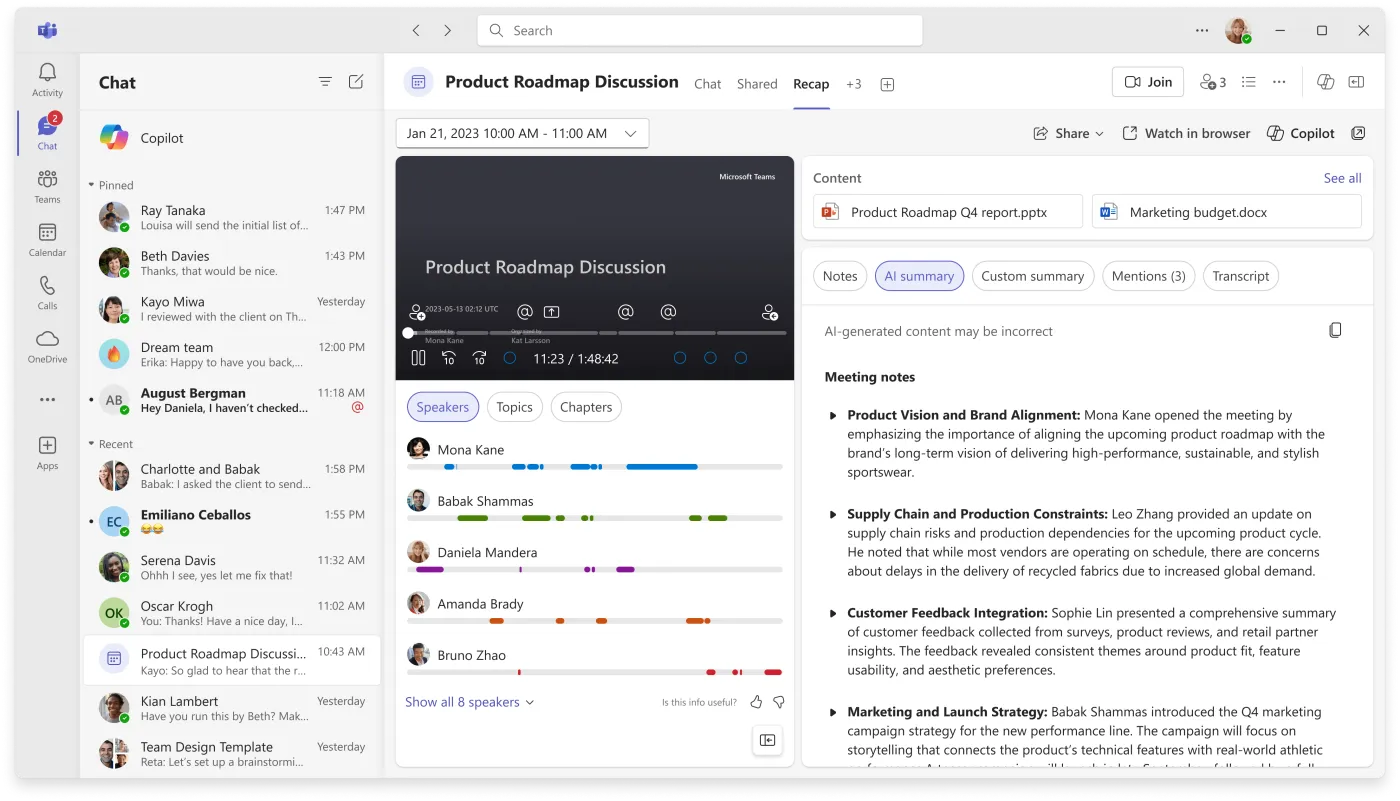
In Teams, start with the meeting itself. After a meeting that was recorded or transcribed, select Recap in the meeting chat. The recap holds the recording, transcript, shared files, notes, agenda and follow-up tasks, and for a recurring meeting you pick the occurrence from a dropdown. You can also get there from Calendar: open the past meeting, then View recap > Notes. Ad-hoc meetings don’t get a recap (Microsoft Support, Microsoft Support).
If you don’t remember which meeting it was, the Meeting Recaps app lists scheduled meetings from the past 30 days that were recorded or transcribed, and you can search it by meeting title, organizer or other keywords. It doesn’t work in Teams mobile (Microsoft Support).
Where the files actually live:
- Recordings save to the organizer’s OneDrive, in the Recordings folder, even if the organizer didn’t attend. Recordings of channel meetings go to the team’s SharePoint site, also in a Recordings folder (Microsoft Learn). The recording itself shows up in the meeting chat, or in the channel conversation for a channel meeting (Microsoft Support).
- Transcripts are stored in the organizer’s OneDrive for Business and appear in the calendar event as soon as the meeting ends. Organizers and co-organizers can download them as .docx or .vtt from Recap > Transcript (Microsoft Support).
- Meeting notes are a Loop document. For a private meeting, Loop content is stored in a Meetings folder in OneDrive; for a channel meeting, in the team’s SharePoint site (Microsoft Learn). External attendees can’t open them.
How long they stay: by default, Teams recordings and transcripts expire after 120 days, and your admin can change that; for A1 licenses the default can be at most 30 days. An expired recording moves to the recycle bin where it was saved, and its owner gets an email. For a work or school account, items in the recycle bin are deleted automatically after 93 days unless the admin has changed that, so check the recycle bin itself rather than counting on a fixed number (Microsoft Learn, Microsoft Support). AI summaries in intelligent recap need Teams Premium or a Copilot license; our page on the Teams AI note taker covers which features need which license.
Where are Google Meet recordings saved?
Google Meet saves recordings, transcripts and “Take notes for me” notes in the same place: the organizer’s Google Drive, in the Google Meet folder, with a subfolder for each meeting (Google Meet Help). The organizer is the person who created the Calendar event.
- Recordings: the organizer and the person who started the recording get an email with the link. If the recording starts at the scheduled meeting time, the link is also added to the Calendar event; if the organizer changes or the meeting happens outside the scheduled time, the link goes to the original event creator instead. Attendees automatically get shortcuts in their own Drive (Google Meet Help).
- Transcripts: the host, any co-hosts and the person who turned on transcripts get an email with the link, and the transcript is attached to the Calendar event (Google Meet Help).
- Gemini notes (“Take notes for me”): the notes doc is attached to the Calendar event, and the organizer gets an email with a link to it. Who else can open it depends on the organizer’s sharing settings. This feature needs an eligible Google Workspace edition or Google AI plan, and the notes follow your organization’s Meet retention policy (Google Meet Help).
Looking for older files? In 2026 Google is renaming the old Meet Recordings folder to Legacy Meet Recordings and moving it inside the Google Meet folder. Old recording links keep working (Google Meet Help).
The quickest route is usually the Calendar event: open the past meeting in Google Calendar and the notes, transcript and recording are attached to it. If the recording isn’t there, for example because it started outside the scheduled time, look in the organizer’s Google Meet folder in Drive or in the email with the recording link.
Notion AI Meeting Notes
Notion’s AI Meeting Notes live in a block on whatever page you added them to, and they have the same permissions as that page: on a private page only you can see them until you share it, and on a shared page everyone with access to the page can. Notes started from a Notion calendar event are private to you by default, unless you turn on auto-sharing with participants. To see all of them in one place, select Meetings in the sidebar, where you can filter, sort and search your past meeting notes (Notion says this is still rolling out). If you’ve set Settings > Notion AI > Default meetings database, new notes are created in that database (Notion Help Center).
Notion doesn’t keep the meeting audio by default. If a workspace owner turns on Store audio locally in Settings > Notion AI, the 10 most recent recordings stay on the recorder’s own device, and only the recorder can download them. An audio or video file you upload to a meeting notes block is different: it’s stored on Notion’s servers until you delete it or the page.
Otherwise, open search with Cmd/Ctrl+P and filter by Created by, Teamspace or Date (Notion Help Center). If a teammate’s notes don’t come up, they’re probably on a page you don’t have access to. Our page on Notion AI meeting notes covers sharing and plans.
Outlook meeting notes
Outlook doesn’t store meeting content itself, but it points to it.
- Teams meeting recap: in new Outlook and Outlook on the web, click a past meeting in your calendar. For private, scheduled Teams meetings, the details link to the meeting’s files, transcript and recording, which stay where they were saved (Microsoft Support).
- Calendar search: search in the calendar looks at the subject, location, body, attachments, organizer and attendees of your events, and you can narrow it to events with attachments (Microsoft Support). If someone attached the notes to the invite, this finds them.
- OneNote: if you sent a meeting to OneNote (the button says Meeting Notes in classic Outlook when you organized the meeting), the page keeps the meeting subject and its original date, so search OneNote for the meeting title (Microsoft Support).
- Loop components added to an event are saved to your OneDrive, and you can find them from Microsoft365.com or OneDrive (Microsoft Support).
Notes you saved as files: search inside them
Many notes never lived in a meeting app: a Word file someone wrote, a PDF of the minutes, a transcript downloaded months ago. If you remember a phrase but not the file name, search the contents.
- Windows: Windows Search indexes the text inside files, so you can search for words within them, and File Explorer uses the same index. In Classic mode it only covers Documents, Pictures, Music and the desktop plus places you add; Enhanced mode covers the whole PC (Settings > Privacy & security > Search > Find my files). A file type set to “properties only” can be found by name but not by its contents (Microsoft Support).
- Mac: Spotlight keeps an index of your Mac that includes documents, email and notes. Open it with Command-Space bar, and hold Command on a result to see where the file is (Apple Support, Mac User Guide). Folders excluded under Search Privacy won’t show up.
If your notes are spread across many folders and you only remember what was said, not the words used, a desktop search app that reads inside files can help. Gety is one. It searches the contents of PDF, Word, PowerPoint, Markdown and text files on your computer, reads text in images and scanned PDFs, and can match by meaning, so a search for “contract” can find a file that says “agreement”. It runs on Windows and macOS, with an experimental Linux version. Indexing and search stay on your computer, and there’s a free plan.
Make the next set of notes easy to find
Most lost notes are a naming problem. A few habits fix it:
- Name files the same way every time, date first: “2026-10-23 Marketing weekly”. Files then sort by date and a search for the meeting name finds them all.
- Keep one place per meeting series: one folder, one Notion database or one OneNote section, and link to it from the calendar invite.
- Write the decisions in words people will search for. “Decided to move the launch to April 14” is easier to find later than “agreed on option B”.
- Start from a template so every set of notes has the same headings. Our meeting notes template and meeting minutes template put decisions and action items in their own sections.
FAQ
Where are Zoom recordings saved?
Cloud recordings are in the Zoom web portal under Recordings & Transcripts > Cloud recordings. Computer recordings are on the computer that recorded the meeting, by default in Documents\Zoom on Windows or Documents/Zoom on a Mac. The Zoom desktop app shows the exact folder under Settings > Recording > Local recording storage.
Why can’t I find a Teams meeting recording?
The recording is saved to the organizer’s OneDrive, not yours, so open it from the meeting chat or the Recap tab. For a channel meeting, look in the team’s SharePoint site. If the meeting is older than your organization’s expiration period (120 days by default), the recording may have expired and moved to the recycle bin, where its owner can recover it for a limited time.
Where does Google Meet save recordings and transcripts?
In the organizer’s Google Drive, in the Google Meet folder, with a subfolder for each meeting. Both are usually linked from the Calendar event too; a recording that started outside the scheduled time may only be in Drive and in the email with the link. Older files may be in the Legacy Meet Recordings folder inside Google Meet.
Can I search inside old meeting transcripts?
In Zoom, the cloud recordings page can search keywords in audio transcripts. For transcripts you’ve downloaded as files, Windows Search or Spotlight can search the text inside, as long as the folder is indexed.
How long are meeting recordings kept?
Teams recordings and transcripts expire after 120 days by default (at most 30 days for A1 licenses), unless your admin changes it. Zoom deletes cloud recordings automatically only if a deletion period has been set, and deleted recordings can usually be recovered from Trash within 30 days. Google Meet notes follow your organization’s Meet retention policy.