Microsoft Teams AI Note Taker
Teams can write AI notes for your meetings through intelligent recap, Copilot and the Facilitator agent. All three need an extra license: intelligent recap comes with a Teams Premium add-on or a Microsoft 365 Copilot license, and Copilot and Facilitator need a Copilot license. Without one, Teams can still record and transcribe a meeting and collect everything in the Recap tab, but nothing writes the notes for you.
This page summarizes Microsoft’s own support and Learn pages, linked throughout. Microsoft’s newer support pages call the Copilot license the “Microsoft Copilot license.” Plan details were checked October 2026.
Quick comparison
| Option | What you get | License needed | Where notes appear | Needs transcription? |
|---|---|---|---|---|
| Teams without add-ons | Recording, live transcript, and shared meeting notes that people type | A Teams license; recording also needs an eligible plan and admin permission | Meeting chat and the Recap tab | The Recap tab appears only after a meeting was recorded or transcribed |
| Intelligent recap | AI notes, suggested tasks, name mentions, speakers and chapters | Teams Premium or Microsoft 365 Copilot | Recap tab in the meeting chat and calendar | Yes, at least transcribed (a no-transcript version for Copilot users is in preview) |
| Copilot in meetings | A private chat that summarizes, suggests action items and answers questions | Microsoft 365 Copilot | Copilot pane during the meeting; meeting chat and Recap tab after | Depends on the organizer’s setting; yes, to use it after the meeting |
| Facilitator agent | Live AI notes everyone can see and edit, agenda tracking, timers, tasks | Microsoft 365 Copilot to turn it on | Meeting chat, and Notes in the Recap tab | Not to run it; yes, to ask it questions afterward |
Sources for each row are in the sections below.
What you get without extra licenses
Every Teams meeting can be recorded and transcribed, if your admin allows it. When you record, transcription starts automatically, and you can also start a transcript on its own from More actions > Transcribe (Microsoft Support). Recording needs one of the business or enterprise plans listed on Microsoft’s recording page, and guests can’t record.
After a meeting that was recorded or transcribed, the Recap tab in the meeting chat collects the recording, transcript, shared files, notes and agenda (Microsoft Support). By default, organizers and co-organizers can download the transcript as a .docx or .vtt file.
Teams also has shared meeting notes. Anyone invited can add an agenda, notes and tasks before, during or after the meeting, and the notes show up in Recap > Notes. External attendees can’t open or edit them (Microsoft Support).
So Teams without the AI add-ons gives you the raw material: a transcript and a shared page to type into. Writing the summary is still on you.
Intelligent recap (Teams Premium or Copilot)
Intelligent recap adds AI to the Recap tab. Select AI summary to see AI-generated notes and follow-up tasks. You also get markers on the recording for when your name was mentioned, a speakers view and automatic chapters (Microsoft Support).
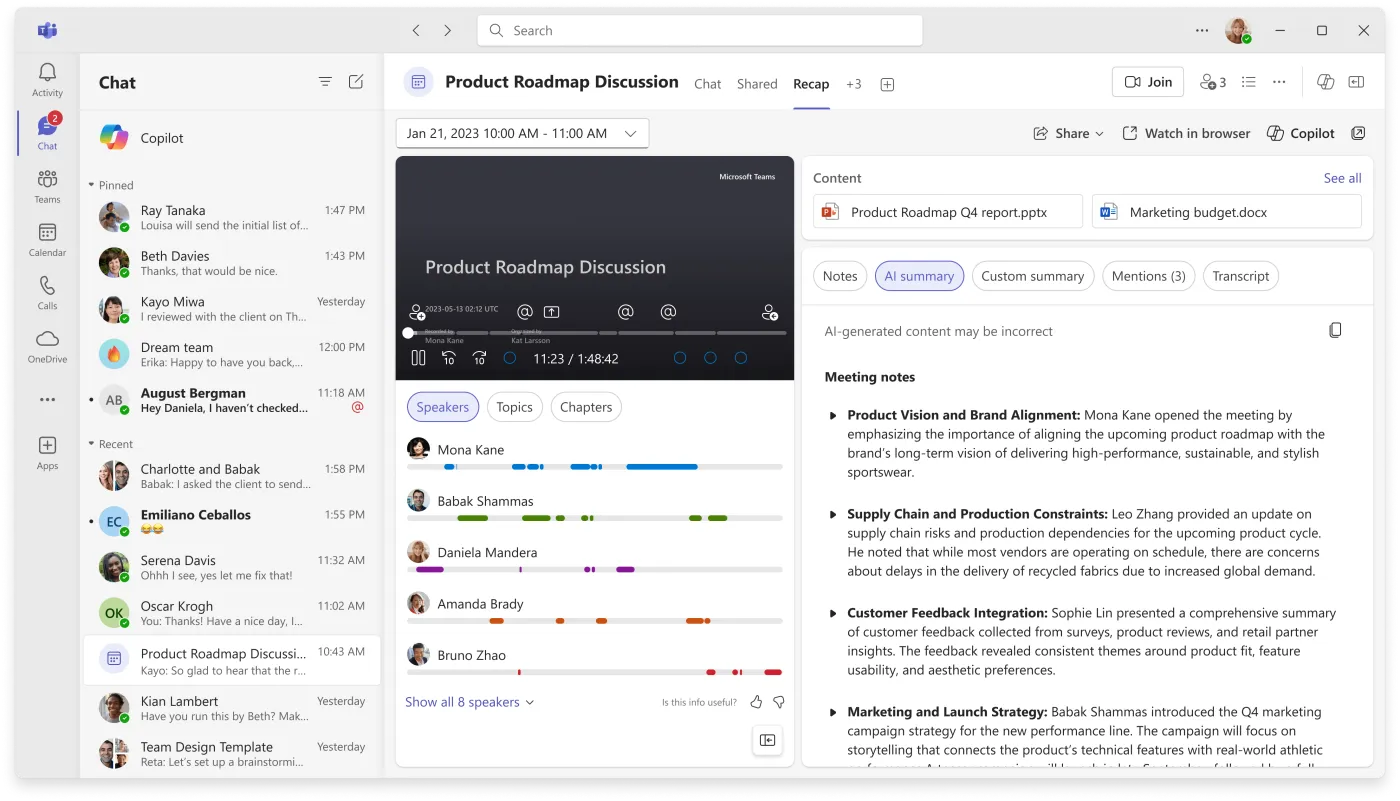
License: a Teams Premium add-on or a Microsoft 365 Copilot license. Each user also needs a regular Teams license, since Teams Premium doesn’t replace it (Microsoft Learn). In April 2026 Microsoft moved some Premium features into standard Teams, but it said intelligent recap stays with Teams Premium (Microsoft Tech Community).
Transcription: the meeting must at least be transcribed, in a supported language, and last five minutes or longer. Microsoft recommends recording too. Speakers and chapters only work when the meeting is recorded and transcribed.
Who can see it: people in your organization who were invited. Anyone outside your organization or not invited can’t open it, even with the link. For webinars and town halls, only organizers, co-organizers and presenters see the intelligent recap.
Sharing outside your organization: organizers, co-organizers and presenters can send the AI summary as an Outlook email from the Recap tab. Recipients are the meeting’s invitees, including external ones, and Microsoft tells you to edit the draft for accuracy before you send it.
Where it’s stored: AI notes and tasks are kept in an Exchange folder in each participant’s mailbox and expire according to your organization’s policy (Microsoft Learn).
Without saving a transcript: for scheduled meetings, organizers with a Copilot license can get an AI summary without keeping a recording or transcript. This is in public preview. The summary is saved as a read-only Word document in the organizer’s OneDrive, expires after 120 days by default, and only attendees in your organization with a Copilot license can see it (Microsoft Learn).
Trial and price (checked October 2026): admins can start a free 30-day Teams Premium trial with 25 licenses in the Microsoft 365 admin center. Users can start their own 60-day trial from Teams on desktop or the web, unless they’re in a government or education organization or their admin has turned self-service trials off (Microsoft Learn). For the Teams Premium price, see Microsoft’s Teams Premium page.
Copilot in Teams meetings
Copilot opens as a private chat pane in the meeting. It summarizes the discussion, including who said what, suggests action items and answers your questions during or after the meeting (Microsoft Support). Other people in the meeting can’t see your conversation with Copilot.
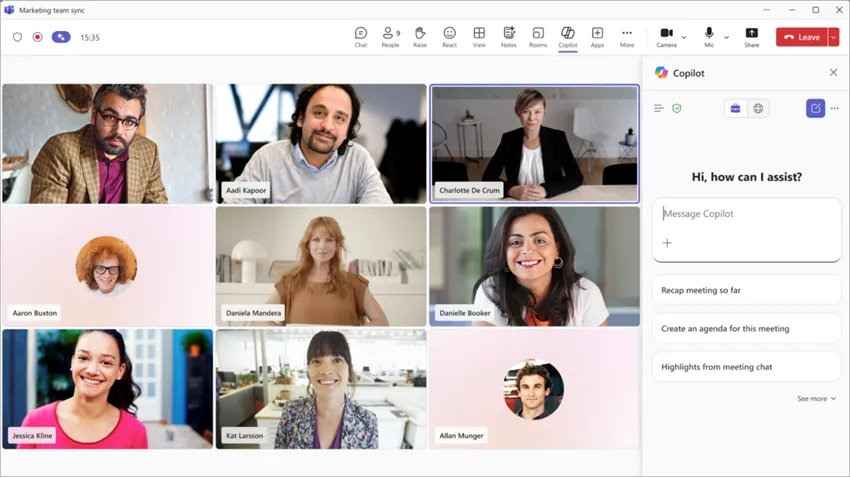
The organizer picks one of three settings under Meeting options > Copilot and other AI, even if the organizer has no Copilot license:
- During and after the meeting. Copilot needs transcription and starts once someone transcribes. Stopping transcription stops Copilot.
- Only during the meeting. Copilot works from speech-to-text data that isn’t saved. When the meeting ends, that data and your Copilot chat are gone, unless someone transcribed part of the meeting (Microsoft Support). Copy anything you want to keep before you leave.
- Off. Copilot is disabled, and so are recording and transcription.
After the meeting, open Copilot from the meeting chat or the Recap tab. To ask about what was said, a transcript has to exist. If Copilot writes a long answer (over 1,300 characters), you can open it in Word, and a table can go to Excel.
Limits: Copilot doesn’t work in meetings hosted outside your organization, and it isn’t available in end-to-end encrypted meetings (Microsoft Learn).
Price (checked October 2026): Microsoft lists the Microsoft 365 Copilot Business add-on at $21 a user a month, paid yearly, with a first-year offer of $18 through December 31, 2026. The add-on is only for existing customers on an eligible Microsoft 365 Business plan. For enterprise plans, see Microsoft’s Copilot pricing page.
The Facilitator agent
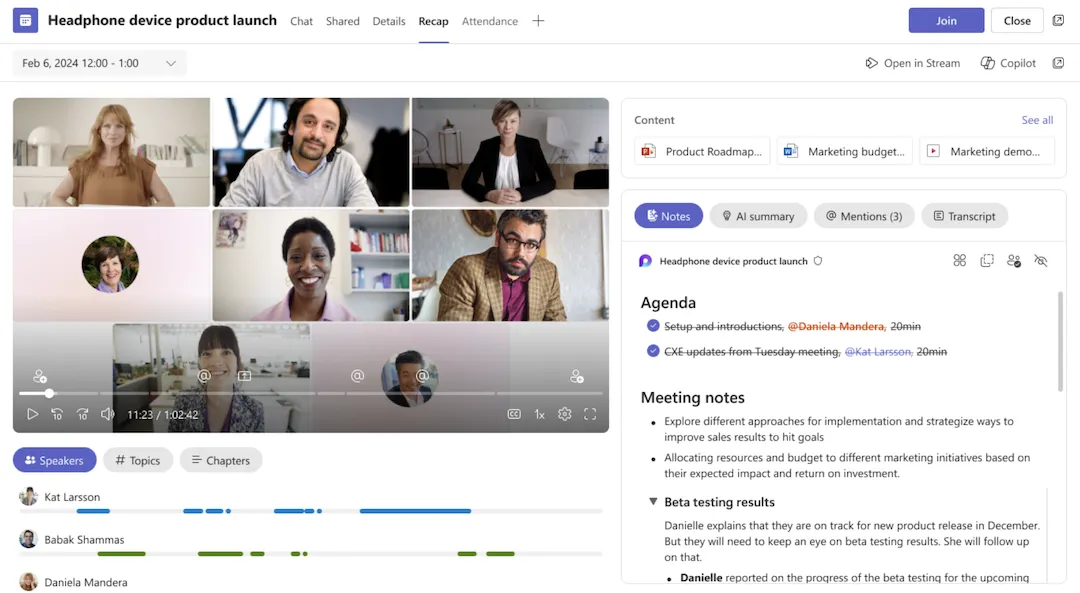
Facilitator is an AI agent in Teams meetings that takes notes everyone can see. Microsoft says it writes AI notes in real time, summarizes key decisions and open questions, tracks the agenda with a timer, and answers questions when you @mention it in the meeting chat (Microsoft Support).
- License: someone needs a Copilot license to add it to a meeting or turn it on. Any participant, except external ones, can see its updates in chat and Notes.
- Meeting types: scheduled meetings only. It can’t be added to channel meetings, instant meetings or Teams calls.
- Turning it on: set Allow Copilot and Facilitator to “Only during the meeting” or “During and after the meeting,” then turn on the Facilitator toggle. During a meeting, organizers and presenters on desktop or web can use More actions > Turn on Facilitator.
- Where notes go: a Microsoft Loop page under Recap > Notes, which any participant can edit. Suggested tasks can be synced to Planner with Accept to sync.
- Transcription: to ask Facilitator about the meeting after it ends, turn on transcription before or during the meeting.
Who turns these on
If a button is missing, it’s usually a policy. Your IT admin controls:
- Recording and transcription, in Teams meeting policies. Intelligent recap needs transcription allowed, and the full recap needs recording allowed too (Microsoft Learn).
- The Copilot default. The default policy is “On with saved transcript required,” which sets meetings to “During and after the meeting” and doesn’t let organizers change it. Other policy values let organizers choose “Only during the meeting” or turn Copilot off (Microsoft Learn).
- Licenses. Teams Premium is assigned per user, so plan a license for every person who should get the Premium features (Microsoft Learn).
Turning Teams AI notes into minutes
An AI summary is a draft, not minutes. It can’t always tell an idea from a decision, it may give a task to whoever mentioned it, and it often leaves dates vague. Microsoft itself says AI-generated content “might be inaccurate, incomplete, or inappropriate” (Microsoft Support).
People who use Copilot summaries say the same. One user who sends meeting follow-ups to a project team said, “I often do quite a bit of editing to the output before sending it out to the team.” The same person said it lets them focus on listening instead of replaying the whole meeting.
Before the recap goes out, check three things against the transcript:
- Decisions: only what the group actually agreed, one sentence each.
- Owners: one named person per action item, not “the team.”
- Dates: a calendar date, not “next week.”
How to check AI meeting notes walks through these errors with a worked example. Then paste the checked content into a skeleton like this:
[Meeting name] minutes
Date: [date]   Attendees: [names]   Absent: [names]
Source: Teams recap and transcript, checked by [name] on [date]

Decisions
D1. [What was decided, in one sentence]
D2. [What was decided, in one sentence]

Action items
ID   Action                          Owner      Due        Done when
A1   [What needs to happen]          [Name]     [date]     [what finished looks like]
A2   [What needs to happen]          [Name]     [date]     [what finished looks like]

Open questions
Q1. [Question] (who will answer it, by when)

Corrections to these minutes by [date] to [name]
If your office writes minutes in Word, start from the meeting minutes template, which downloads as a Word file. It fits the downloaded .docx transcript and Copilot’s “Open in Word” output. If your team keeps notes in OneNote, the OneNote meeting notes template has the same sections. For rough notes, the free notes to minutes tool turns them into a clean draft.
Consent and recording notices
Teams notifies everyone in the meeting when recording or transcription starts (Microsoft Support). Still, say at the start that AI notes are on, and follow your organization’s policy and local recording laws. Microsoft notes that depending on your region, you may need everyone’s permission before recording. This isn’t legal advice.
If Teams AI notes don’t fit
If you don’t have the licenses, or you often meet in other companies’ Teams meetings, a separate note taker may suit you better. Most join as a bot. Teams now detects external bots: by default, a detected bot waits in the lobby until an organizer admits it, and admins can change that setting (Microsoft Learn). Our AI note takers comparison covers the alternatives and has a short Copilot section. If you need agendas, approvals and an archive of minutes, see meeting minutes software.
FAQ
Does Teams have a free AI note taker?
No. Recording, transcription, the Recap tab and shared meeting notes come with Teams, but AI notes need Teams Premium or a Microsoft 365 Copilot license. Admins can start a free 30-day Teams Premium trial, and users may be able to start a 60-day self-service trial (Microsoft Learn).
Do I need Copilot to get AI notes in Teams?
Not necessarily. Intelligent recap’s AI notes and suggested tasks come with either Teams Premium or a Copilot license. Asking questions in a private Copilot chat and using the Facilitator agent need a Copilot license.
Can I use Teams AI notes in meetings with people outside my company?
Yes, if your organization hosts the meeting. External attendees can’t open the intelligent recap, but the organizer can email them the AI summary from the Recap tab. In meetings hosted by another organization, Copilot won’t work for you (Microsoft Support).
Where do Teams AI notes go after the meeting?
Open the meeting chat or calendar event and select Recap. The AI summary is under AI summary, Facilitator’s notes are under Notes, and Copilot is available from the meeting chat and the Recap tab. AI notes expire according to your organization’s policy.
Can a third-party note taker join a Teams meeting?
Often, yes, as a bot participant. Teams detects external bots and, by default, holds them in the lobby until the organizer admits them. Your admin can change this, and some bots may not be detected (Microsoft Learn).