Notion AI Meeting Notes
Notion AI Meeting Notes is a block you add to a Notion page that transcribes your meeting and writes a summary with key points and action items. It records from your own computer or phone, so no bot joins the call. You need Notion’s Business plan ($20 per member a month billed yearly) or Enterprise to use it fully; Free and Plus only get a limited trial (checked October 2026).
This page summarizes Notion’s help article on AI Meeting Notes, its pricing page, its AI security page and its release notes. If you want a place to keep the notes once they exist, our free Notion meeting notes template shows how to set up a meetings database, step by step.
What it does
According to Notion’s help center, AI Meeting Notes “transcribes your meeting and identifies key points and action items that you can share with your entire team.” Each meeting notes block has three parts:
- Summary: written by Notion AI when you stop recording. It includes citations you can hover over or click to jump to the matching line in the transcript.
- Notes: your own notes. You can type an agenda or context here before the meeting, and Notion says both the transcript and your notes are used to write the summary.
- Transcript: the full text, with a new line each time the speaker changes.
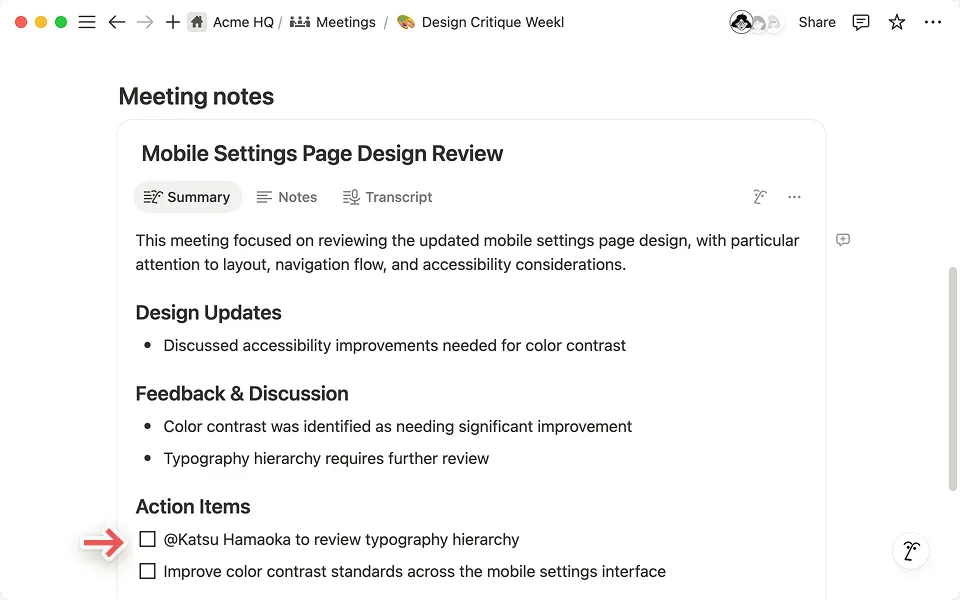
You can change how the summary is structured. Under Instructions at the bottom of the block, you can switch from Auto to a built-in format such as a sales call, standup or team meeting, or write your own custom instructions on a template page. You can also set any of them as your default. If you already have a recording, you can upload it to a meeting notes block in AAC, M4A, MP3 or WAV format and Notion will transcribe and summarize it. The help center says MOV, MP4 and Loom files aren’t supported for upload.
Speaker labels work best in a virtual one-on-one on the desktop app, and may be unreliable in group or in-person meetings, in the browser or on mobile. For Google Meet in Chrome, the Notion Meetings Add-on browser extension adds speaker labels, including in group calls.
Which plan you need
These are from Notion’s pricing page, checked October 2026, with the page set to yearly billing in US dollars.
| Plan | Price per member a month | AI Meeting Notes |
|---|---|---|
| Free | $0 | Limited trial |
| Plus | $10 billed yearly ($12 monthly) | Limited trial |
| Business | $20 billed yearly ($24 monthly) | Included |
| Enterprise | Custom pricing | Included |
The help article says you must be on Business or Enterprise, and that the feature is “also available for eligible mobile subscriptions where Notion AI is included.” The pricing page lists it on Business as “no bot needed.”
How to start AI Meeting Notes
The help center describes these steps:
- Add the block. Type
/meeton any page in the Notion desktop app. If you’re in a web browser, Notion prompts you to open the desktop app or download it. You can also start from the Upcoming events tile in Home. - Prepare. Write agenda items or context under Notes before the meeting.
- Start. When the meeting begins, select Start transcribing. Notion says that by doing this “you’re confirming that everyone in the meeting has given their consent.”
- Stop. Select Stop when the meeting ends. The summary starts generating on its own. You need at least one minute of audio (about 300 transcribed characters) for a summary.
You can resume a stopped recording from the slider icon at the top of the block.
With your calendar. If you connect Notion Calendar, you can create a meeting note from an event (not all-day events), and from 15 minutes before the start you may see Join and transcribe. A Meetings tab in the sidebar lists upcoming meetings and past notes; the help center says it is still rolling out.
Meeting detection. The desktop app can offer to take notes when an app such as Zoom starts using your microphone. Notion says it “does not listen to the audio” to do this. Turn it off in Settings → Notifications.
Desktop, browser or phone
Where you run it decides what Notion can hear.
- Desktop app: best for video calls. It captures your microphone and your computer’s system audio, so it hears everyone even if you wear headphones. It needs screen recording and system audio permissions, app version 4.7.0 or later, and macOS 13 or later or the latest Windows.
- Browser: only your microphone is transcribed. If you wear headphones, audio from Google Meet, Zoom, Microsoft Teams and other tools won’t be captured. Notion suggests the browser for in-person conversations.
- Mobile app: records through your phone’s microphone only, so it can’t hear people on a call playing through your phone. Notion says it works best for in-person meetings, or when call audio plays out loud from another device.
AI Meeting Notes doesn’t work offline.
Languages: English, Chinese, Spanish, French, German, Japanese, Korean, Portuguese, Russian, Thai, Vietnamese, Danish, Finnish, Norwegian, Dutch and Swedish. Speaker labeling is English only.
Where the notes live and who can see them
The meeting notes block sits on a Notion page, and the help center says notes “inherit the permissions of the page they’re saved on.” That covers the transcript, the notes and the summary. In practice:
- By default, your meeting notes are private to you. If the block is on a private page, you have to share the page before teammates can see anything, transcript included.
- Auto-share is optional. In Settings → Notion AI, you can turn on Auto-share with internal calendar event participants. Notes you create from Notion Calendar are then shared with attendees who are members of your workspace, and they get view and edit access. Each person sets this for their own notes.
- A default database keeps them together. In Settings → Notion AI → Default meetings database, choose a database and new AI meeting notes are created there. Notion reminds you to check that each page is shared with the right people.
- Audio stays with the recorder. If local audio storage is turned on, recordings are kept on the recorder’s device and only the recorder can download them.
So if you share the page, everyone with access can read the full transcript. If the meeting covered anything that shouldn’t go further, copy the checked summary to another page or delete the transcript before you share.
Data, retention and AI training
Notion’s AI security page says: “By default, neither Notion nor our AI providers use your Customer Data to train any models.” The AI Meeting Notes help article adds these details:
- Sub-processors: OpenAI, Anthropic, Fireworks, Baseten Labs, X.AI and AssemblyAI handle recording, transcription and summaries. Notion says sub-processors don’t store audio.
- Desktop and browser: audio goes straight to the sub-processors for real-time transcription. A temporary copy stays on your device and is deleted after processing or within 24 hours, whichever comes first. If processing fails, audio is uploaded and kept by Notion for up to 3 days to try again.
- Mobile: audio is uploaded to Notion’s servers and deleted right after processing.
- Deleting a transcript: choose Delete transcript from the slider icon in the block, or delete the page.
On the pricing page, Free, Plus and Business show “30 day retention” for Notion AI data with LLM providers, and Enterprise shows “Zero data retention” (checked October 2026).
Admin controls
Workspace owners get these settings under Settings → Notion AI, according to the help center:
- Workspace availability: turn AI Meeting Notes off for the whole workspace.
- Enforce consent for all workspace members: play an audio consent message at the start of every transcription.
- Store audio locally: off by default on all plans. When on, the 10 most recent recordings are kept on the recorder’s device.
- Automatic transcript deletion (Enterprise only): delete transcripts on a schedule. Summaries and notes stay. Transcripts on pages under legal hold aren’t deleted.
Telling people you’re recording
Tell everyone at the start that you’re using AI notes, and follow your organization’s policy and the law where you and the other attendees are. This is general information, not legal advice.
Notion lets you paste an editable consent message into the meeting chat or play it from your speakers. With the Google Meet add-on, it pins a notice in the Meet chat. The help center also recommends getting consent from anyone who joins after transcription starts.
From AI notes to minutes you can send
The summary is a first draft. AI summaries can turn a suggestion into a decision, assign a task to the wrong person, or invent a due date nobody agreed on. Notion’s own help center notes that transcripts can include words that weren’t said when audio is poor. Before you share, read the summary against the transcript and check three things:
- Decisions: was it agreed, or only discussed?
- Owners: is each action item assigned to the person who said yes?
- Dates: was each due date actually said, and by whom?
How to check AI meeting notes walks through these checks with a worked example.
Then put the checked version where people will find it. A meetings database works well in Notion, because each meeting is one page and you can filter by type or date. Here is a simple layout you can copy:
Database: Meetings

Properties
  Name            Title      Weekly team meeting, Nov 3
  Date            Date       Nov 3, 2026
  Meeting type    Select     Team weekly / Client / 1:1 / Project
  Attendees       Person     Maya Okafor, Priya Nair
  Status          Select     Draft / Checked / Sent

Page body
  AI Meeting Notes block     (Summary, Notes, Transcript)

  Decisions
  - What was decided, and who decided it

  Action items
  [ ] Action                          Owner      Due
  [ ] Send revised quote to client    Priya      Nov 6
  [ ] Book room for the March review  Maya       Nov 10
Set this as the default meetings database in Settings → Notion AI, so new AI notes land in it. Our Notion meeting notes template has this setup with views, a default page template and sections for last meeting’s action items.
Two Notion features help here. Custom summary instructions can use the same headings as your minutes, such as Decisions and Action items with an owner and due date. And Notion’s September 15, 2026 release notes say Custom Agents can take a finished meeting’s transcript and summary and file the action items or write a recap, on Business and Enterprise. Custom Agents use Notion credits ($10 per 1,000, per the pricing page). An agent working from an unchecked summary files its mistakes too, so check first.
If you need formal minutes instead of team notes, paste your checked notes into our meeting notes to minutes tool for a clean draft. For approvals, votes and signed minutes, see meeting minutes software.
Limits to know
- Usage: 10 hours a day per user (help center).
- Minimum length: about one minute of speech for a summary.
- Platforms: full call audio only in the desktop app.
- Offline: not supported.
- Speaker labels: English only.
- Uploads: audio files only (AAC, M4A, MP3, WAV).
If those limits rule Notion out, or your team doesn’t use Notion, the best AI note takers guide compares Otter, Fireflies, Fathom, Granola and the AI built into Zoom, Google Meet and Teams.
FAQ
Is Notion AI meeting notes free?
Not fully. Notion’s pricing page lists AI Meeting Notes as a limited trial on the Free and Plus plans. Full use needs Business, at $20 per member a month billed yearly or $24 monthly, or Enterprise (checked October 2026). The help center says it’s also available on eligible mobile subscriptions that include Notion AI.
Does Notion AI join my meeting as a bot?
No. It records from your device. The desktop app captures your microphone and your computer’s audio, and Notion’s pricing page describes the feature as “no bot needed.” Since there’s no bot in the call to signal it, tell people yourself that you’re recording.
Can Notion AI meeting notes record in-person meetings?
Yes. The help center says the browser and the mobile app both record through your microphone and are best suited to in-person conversations. Speaker labels may be unreliable when several people share one microphone.
Who can see the transcript?
Whoever can see the page. Meeting notes are private to you by default and inherit the permissions of the page they’re on, so anyone you share the page with can read the transcript, notes and summary. Audio, if stored, is only available to the person who recorded it.
Can I use Notion AI meeting notes with Zoom, Teams or Google Meet?
Yes. Notion’s product page says it “supports every video tool,” and the desktop app picks up the call through your computer’s system audio. Use the desktop app for video calls: in the browser, call audio from Google Meet, Zoom or Teams isn’t captured if you wear headphones. For Google Meet in Chrome, the Notion Meetings Add-on adds speaker labels and a chat notice.